Thank you for using our Yaraku Translate application.
We will be updating Yaraku Translate to Ver.6.1.
As such, the application will be temporarily unavailable during the following period:
November 1, 2026 (Sun) 10:00 AM – 1:00 PM (JST)
The main features in this update are:
- “Style Guide” for setting translation purpose and translation style
- “AI Checker” for checking translations and automatically correcting mistranslations
- Improvements to PowerPoint file translation
1. “Style Guide” for setting translation purpose and translation style
Generate higher-quality translations tailored to your specific needs
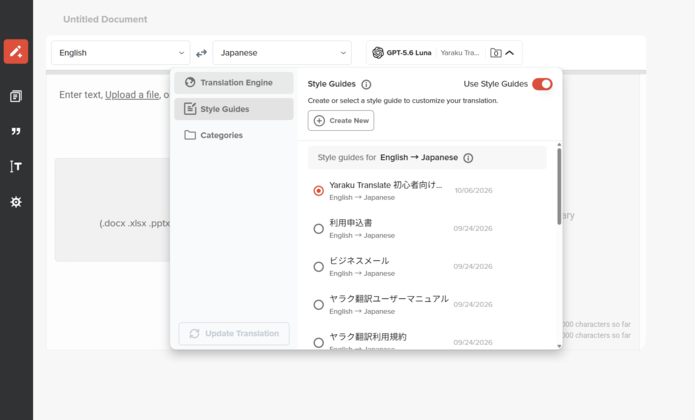
*Images are under development and may differ from the actual screen.
【Key Features】
- To reduce the creation burden and the need for advanced knowledge that were obstacles to using traditional “Prompts,” the “Style Guide” organizes settings to make it easier to create and support.
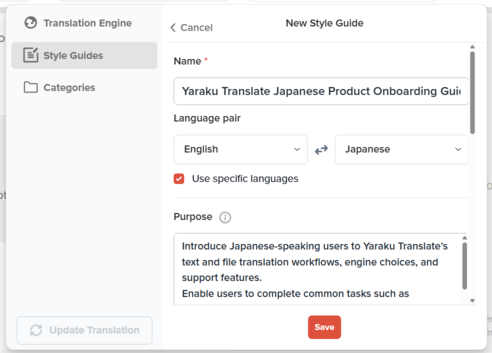
- By specifying target audience, writing style, and notation rules to follow during translation, the Style Guide allows you to generate higher-quality translations tailored to your purpose.
- In addition to manual creation, Style Guides can be automatically generated based on the source text to be translated.
- The Style Guide is an expanded successor to the previous Prompts feature. Saved prompts will automatically be converted to Style Guides.
- Available for all language pairs regardless of contract plan or user permissions.
- Applies only when translating with generative AI engines.
【How to Use】
Style Guides can be created, edited, and applied from the “Style Guide” tab in the translation settings menu at the top of the new translation page.
Only Style Guides corresponding to the currently selected language pair will be displayed in the list.
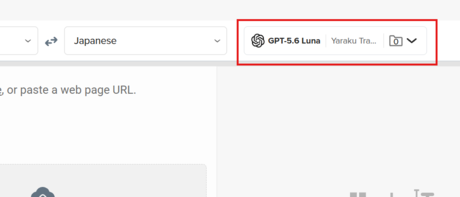

To automatically generate a style guide, click the “Create New” button, enter the source text or upload a file, and select the language pair.
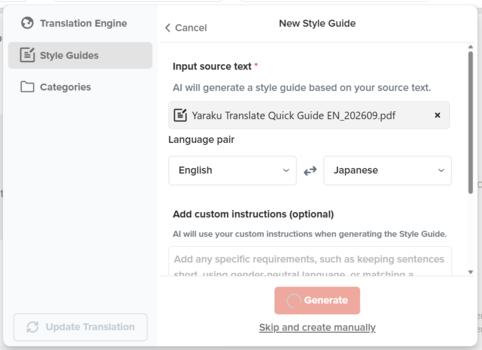
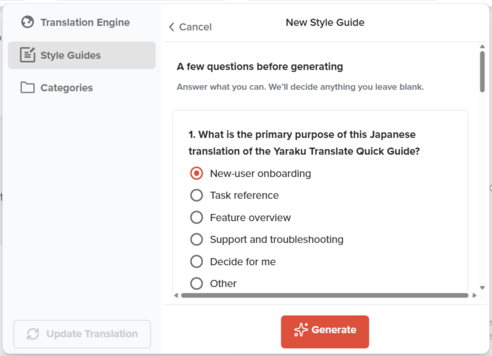
When you click the “Generate” button, a few questions will appear. Your answers will be taken into account when generating the style guide. Once you have answered the questions, click “Generate” again to create the style guide.
2. “AI Checker” for checking translations and automatically correcting mistranslations
Detects 80–90% of issues and automatically corrects them to appropriate translations*1
*Images are under development and may differ from the actual screen.
【Key Features】
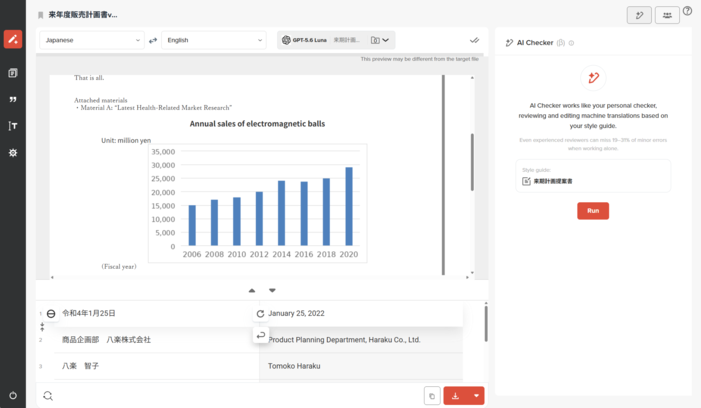
- AI Checker evaluates translations and automatically corrects those that are deemed in need of revision.
- By referencing translation style guides, the AI checker enables flexible adjustment of key evaluation and correction points based on the document’s characteristics, while also allowing for the verification of specified tone and style rules.
- Adopts the widely used MQM (Multidimensional Quality Metrics)*2, enabling flexible adjustments of evaluation points based on the document type. The screen shows error categories based on MQM classification, along with the reasons for the correction.
- When Style Guide is not applied to the translation, common translation issues such as mistranslations and omissions can still be checked.
- Available for both Company and Enterprise plans. *Not available for Personal Plan users.
- Supports all language pairs.
【How to Use】
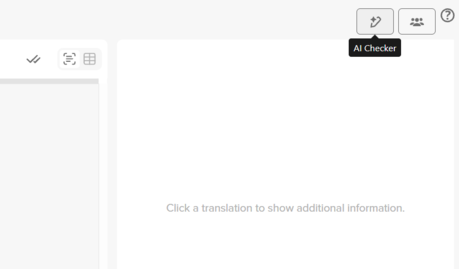
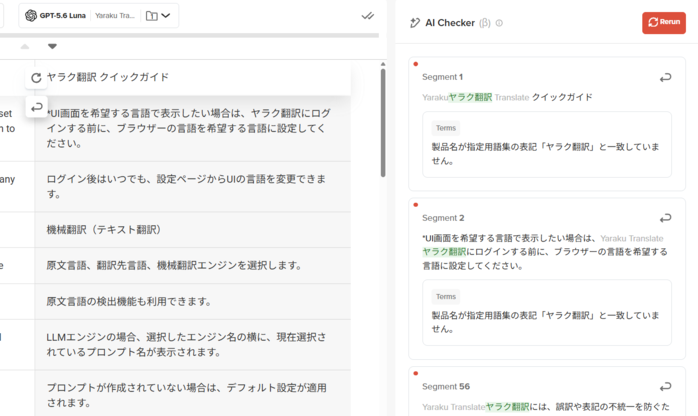
- After translation is done, click the “AI Checker” button in the top right corner of the document editing screen.
- When the confirmation message appears, click “Run”. The entire document’s translations will be reviewed and corrected as necessary. Confirmed segments (green) and segments with exact phrase matches (blue) will not be modified.
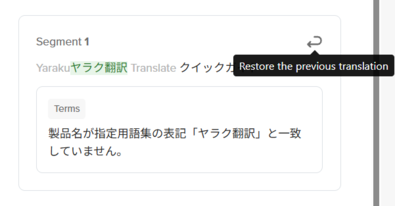
- Correction results appear in the side panel. To undo modifications by AI Checker, click “Restore the previous translation”.
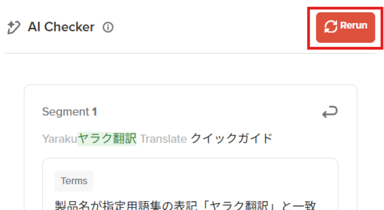
- After running AI Checker across the entire document, it can also be re-run on individual segments. Select the target segment and click “Rerun” in the “AI Checker” section of the side panel.
- Corrections made by AI Checker can be reviewed anytime in the “Revision History” section of the side panel.
*1 In internal evaluations using 20 Japanese-to-English test datasets, detection rates were measured against human-identified translation errors based on MQM. Detection rates vary by language pair, content, and error type.
*2 MQM (Multidimensional Quality Metrics) is a translation evaluation framework widely used for multi-faceted translation quality assessment. It systematically categorizes errors such as mistranslations, omissions, grammar, terminology, and style, evaluating their severity.
3. Improvements to PowerPoint File Translation
Improvements to the PowerPoint file parser make it easier to preserve source text formatting post-translation. Additionally, translation processing time is reduced to approximately 1/8 to 1/10 of previous speeds.
*Processing time varies depending on file content and size.

Yaraku Translate will continue making improvements to deliver an easier-to-use and higher-quality translation experience.
We hope you make full use of the updated Yaraku Translate!