Some smartphone translation apps can automatically translate text captured with your camera into another language.
In the past, translating text often meant typing it directly into a translation website. Today, you can simply capture the text with your camera and get a translation almost instantly.
Camera translation can be useful when traveling abroad, learning a language, or working with multilingual materials. It is especially helpful for translating printed text such as signs and menus in real time.
This article introduces two major camera translation services that let you translate text with your camera.
Two camera translation services and their features
Here are two camera translation services, with details on how to use each one and what to keep in mind.
Both are free to use on a smartphone, so you can try them for yourself.
Google Translate
Google Translate, provided by Google, is a translation tool used around the world.
The mobile app includes real-time camera translation. Point your camera at text on a sign, menu, or other printed material, and the translation appears on screen.
You can also download supported languages in advance and use camera translation offline when your internet connection is unstable.
Google Translate supports more than 100 languages. It also offers voice input, handwriting input, conversation mode, and other input methods for different situations.
Features:
- Real-time translation: Translates street signs, restaurant menus, and other text on the spot
- Offline use: Works even when your internet connection is unstable
- Multilingual support: Supports more than 100 languages, including major languages
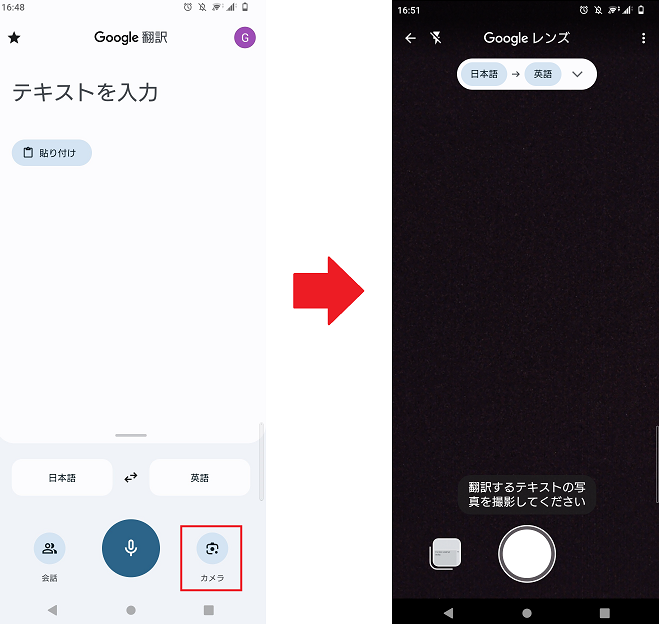
How to use Google Translate’s camera feature
- Open the app and set the source and target languages.
- Tap the “Camera” icon.
- Point the camera at the text you want to translate. The translation appears in real time, although accuracy may be lower offline
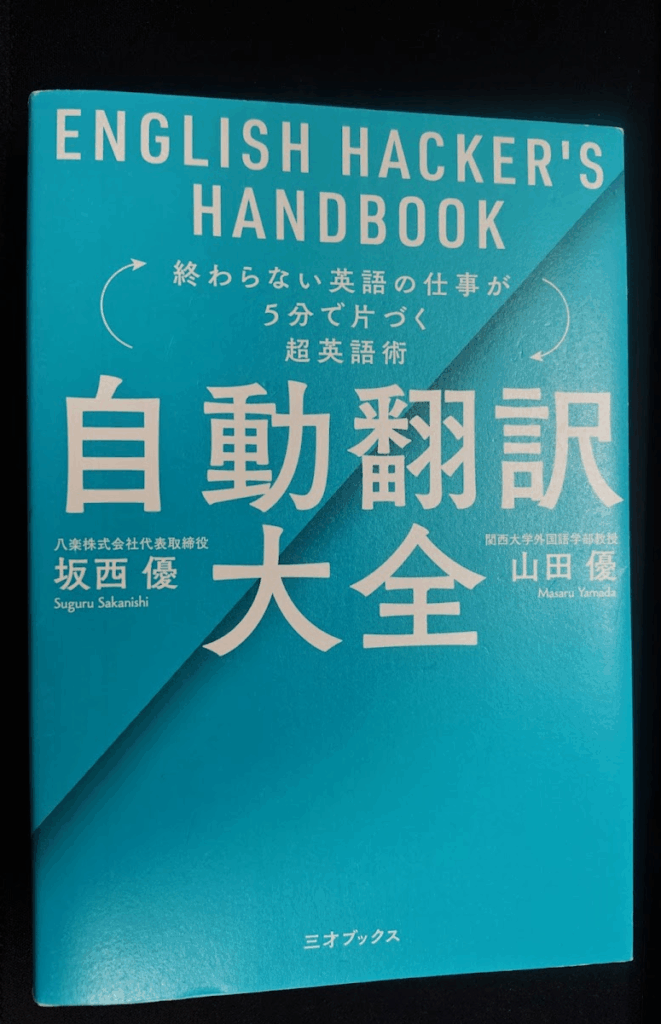
We tested Google Translate’s camera feature on Jidou Honyaku Taizen (ENGLISH HACKER’S HANDBOOK), co-authored by Suguru Sakanishi, CEO of Yaraku, Inc., and Masaru Yamada, Chief Evangelist at Yaraku, Inc. and a professor at Rikkyo University.
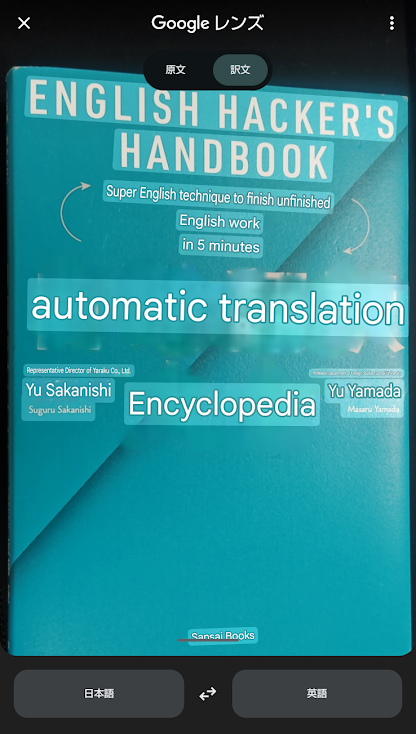
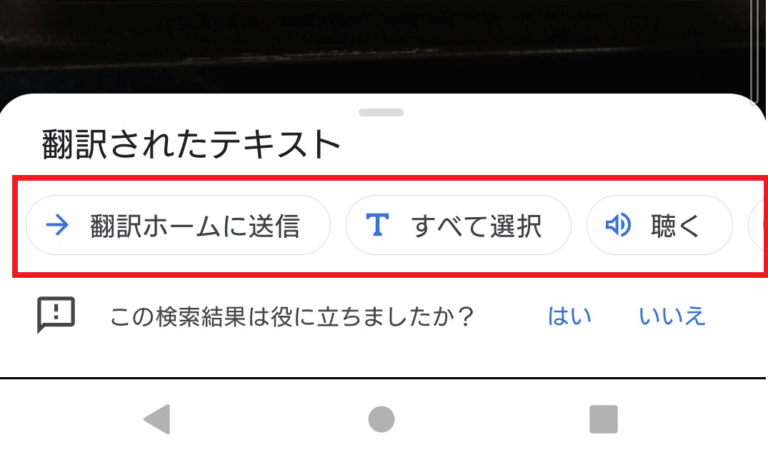
After capturing the text you want to translate, you can:
- Open the source text and translation screen
- Listen to the translated text
- Share it with other apps such as LINE or Facebook
Points to note
- Handwritten-style fonts and distorted text may not be recognized correctly.
- Translation results may vary depending on the conditions in which the image is captured.
How camera-captured text is handled
When you use Google Translate’s camera feature, Google’s Privacy Policy states that the data you enter may be handled as described below. Google may use text and image data to provide, maintain, and improve its services. This can include improving translation accuracy and developing new features. Google states that this data is processed in a way that does not identify individuals to help protect privacy.
Google also states that user data is not shared with third parties and that data used is stored only for a short period. [3] Google Cloud shared with third parties, and data used is stored for only a short period.
Reference: [3] Google Cloud
Personal information: what to consider before translating
Take care when using Google Translate to translate documents that contain personal or confidential information.
Even if data is processed in a way that does not identify individuals, content may still be sent to Google’s servers for translation. This means the risk of information exposure cannot be eliminated entirely. Take particular care with documents that contain sensitive information such as bank account details or passwords.
Where possible, avoid translating documents that contain personal or highly confidential information. If translation is unavoidable, consider using offline mode or another translation tool that provides stronger privacy protection.
Microsoft Translator
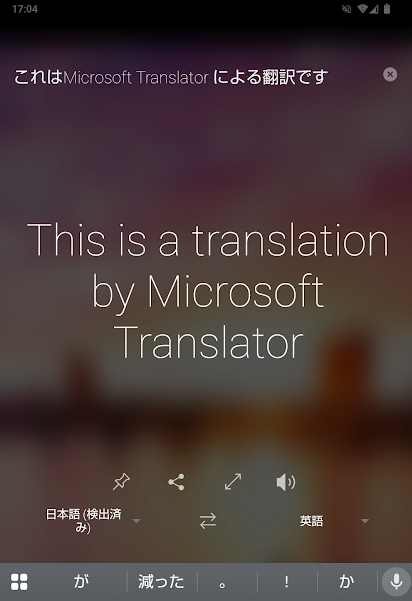
Microsoft Translator is a high-performance translation tool that supports more than 100 languages ([2] Microsoft). Its mobile app supports text, voice, image, and conversation input, enabling real-time translation.
Microsoft Translator’s camera feature can translate text on signs, menus, and other printed materials on the spot, making it useful for travel and business. You can also download supported languages in advance for offline use when your internet connection is unstable.
Microsoft Translator also includes a conversation translation feature that can be used by multiple people.
Features:
- Image translation: Translates text in real time with the camera or from an existing photo in your gallery
How to use Microsoft Translator’s camera feature
- Install the app and set the source and target languages
- Tap the camera icon to take a photo (or select an image from your gallery).
- Select the area you want to translate, and the translation will appear automatically
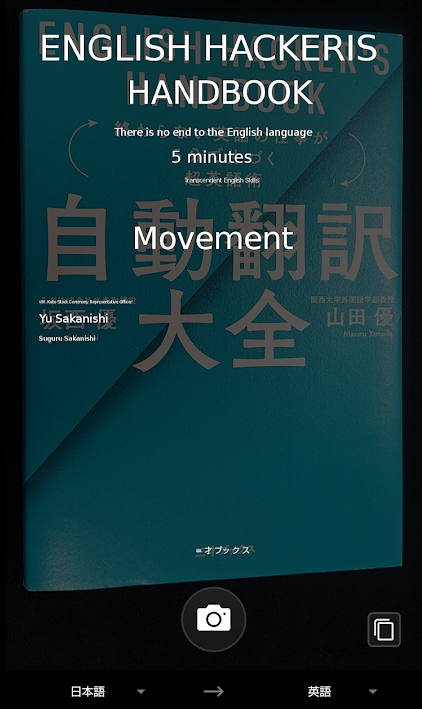
Some text remains untranslated, but the image above shows the results of our camera translation test.
You can translate not only photos taken with the camera but also images already saved on your smartphone.
Note: Some features, including voice translation and conversation mode, may be unavailable offline.
Practical uses for camera translation
Here are some situations where camera translation can be useful. Consider which uses fit your needs.
Language barriers can make overseas travel more difficult. If signs at stations, bus stops, or tourist sites are available only in the local language, it may be harder to navigate or understand tourist information. Camera translation can help reduce these concerns.age barriers can be an obstacle . If station, bus stop, or tourist information signs are only in the local language, it can be difficult to navigate or understand sightseeing information.Camera translation can eliminate such concerns.
At restaurants, menus without photos can also make it difficult to tell what the dishes are like. With camera translation, you can translate dish names, ingredients, and descriptions of cooking methods in real time, helping you understand each dish before ordering.
Understanding documents and brochures from overseas
Camera translation can also help you quickly understand foreign-language documents and brochures, such as materials sent from overseas or multilingual tourist brochures. Instead of reading each sentence individually, you can capture the whole page with your camera to get the overall meaning more quickly.
It is also helpful in business situations, but be mindful of whether the document contains personal or highly confidential information before translating.
Supporting language learning
Scan text in study materials to translate unfamiliar words and phrases immediately and study more efficiently.
You can also use text-to-speech alongside translation to check pronunciation and practice listening.
Camera translation limitations and precautions
Camera translation is useful, but it is not suitable for every situation. In business settings, relying on it without understanding its limitations can lead to misunderstandings or other problems. Keep the following points in mind when deciding when to use it.
1. OCR limitations (handwriting and fonts)
Handwritten-style fonts, highly stylized fonts, and distorted text may not be recognized accurately. Results can also vary depending on focus, lighting, and other shooting conditions.
2. Translation accuracy limitations (context and terminology)
Camera translation is not well suited to documents such as contracts or technical manuals where every word must be accurate. In some cases, you may still need to infer the context from individual translated words or phrases. It is best used as a supporting tool for quickly understanding the general meaning of text in front of you.
3. Handling confidential and personal information
When using services such as Google Translate or Microsoft Translator, take care when handling documents that contain personal or confidential information.
Although providers may state that data is processed in a way that does not identify individuals, the content you translate may still be sent to the provider’s servers.
Because the risk of information exposure cannot be eliminated entirely, avoid translating documents that contain bank account details, passwords, confidential company documents, or similar sensitive content. If you need stronger security, consider a translation tool that meets your organization’s security requirements.

Reviewed by
Masaru Yamada
He holds a PhD from Rikkyo University’s Graduate School of Intercultural Communication, specializing in intercultural communication and translation and interpreting studies. He has worked as an in-house interpreter at Ford Motor Company and as an industrial translator. He has also served as a director of both the Japan Association of Interpreting and Translation Studies and the Asia-Pacific Association for Machine Translation (AAMT).
Translating files that contain images
Smartphone camera translation is convenient for signs and menus, but business and educational settings often require accurate translation of files that contain images, such as PDFs with photos, scanned documents, or PowerPoint files.
These files require more than optical character recognition (OCR). Translation also needs to account for document structure and layout.
Simply photographing a document can cause layout information or text in charts and diagrams to be missed, and it can reduce recognition accuracy.
More services now let you upload and translate entire files. Paid and business-oriented tools in particular often provide file translation features designed for practical workflows.
- Upload and translate PDF, Word, and PowerPoint files directly
- Preserve the original file layout more easily after translation
- Keep images, charts, and diagrams in place more reliably
- Edit and use the translated file more easily
File translation is widely used for business materials such as presentations, brochures, and internal documents.
▼ File translation case study (Yaraku Translate)
To translate files containing both text and images more easily, try the file translation feature in a translation support tool.
Camera translation summary
Advances in OCR (optical character recognition) and machine translation have made smartphone camera translation easier to use.
- Google Translate
- Microsoft Translator
Both are free and easy to use for travel, business, learning, and other situations.
At the same time, some translation services may use the text you enter to improve their services. When translating business documents, check each service’s data-use policy and handle information appropriately.s a possibility that the text you translate could be reused for service improvement.Special precautions are necessary when translating documents for business use to ensure data security.
References
[1] Google (2024). “Google Translate camera feature and privacy policy.” Accessed 2025/10/16, https://support.google.com/translate/answer/6142483
[2] Microsoft Support. “Languages supported by Microsoft Translator.” Accessed 2025/10/16, https://support.microsoft.com/en-us/forms/languages-supported-by-microsoft-forms
[3] Google Cloud. “Data usage in Cloud Translation.” Accessed 2025/10/06, https://docs.cloud.google.com/translate/data-usage