
High-quality translation for text and files
Try the free Yaraku Translate demo with no sign-up required. Enter text or upload a file to get your translation. Give it a try.

Expert review: Masaru Yamada
He is a professor at Rikkyo University College/Graduate School of Intercultural Communication. After working as an in-house interpreter at Ford Motor Company and as an industrial translator, he founded Translation Lab Inc. He also serves as Chief Evangelist at Yaraku, Inc. (Full profile)
This article was localized from an expert-reviewed Japanese manuscript.
PowerPoint slides often need to be translated into English or other languages for presentations aimed at international audiences or materials shared across multinational teams.
- Spending too much time on translation
- Layouts breaking after translation
- Concerns about machine translation accuracy
In this article, we’ll explain how to translate PowerPoint slides using built-in features and external translation tools. We’ll cover their pros and cons, and provide countermeasures against layout issues after translation.
When do you need to translate PowerPoint slides?
PowerPoint slides may need to be translated from Japanese into English or other languages in many situations.
Foreign-language materials are needed in many situations, including promoting new products and services overseas, presenting at international conferences, and sharing internal manuals.
In recent years, demand for AI translation and translation management software has also grown. The translation management software market is projected to grow at an annual rate of 16–18% over the next few years, while investment in AI and automation continues [1].
Examples
- Reporting to a manager overseas
- Negotiating with overseas companies
- International academic meetings and conferences
PowerPoint’s built-in features and external tools can help you create multilingual materials. However, it is important to check both translation accuracy and whether the layout remains intact after translation.
Main ways to translate PowerPoint
PowerPoint is widely used to create presentations across business, education, research, and other fields. According to the reference data, it accounts for approximately 23% of the presentation software market [2].
There are several ways to translate PowerPoint slides. The right method depends on the required translation accuracy, workflow efficiency, cost, and other factors.
- Using PowerPoint’s standard translation feature
- Use the automatic translation function built into PowerPoint (Microsoft Translator).
The next section explains how to translate slides using PowerPoint’s built-in translation feature.
Translating with PowerPoint’s built-in translation feature
PowerPoint includes a translation feature that lets you translate text on slides into other languages. Because you can translate directly in PowerPoint without opening an external tool, it is convenient when you only need to translate selected content.
Steps
These instructions are based on Microsoft 365. The interface may vary slightly by version, but the basic process is the same.
- Select the text to translate – Highlight the text or bullet points you want to translate.
- Open the “Review” tab – Click the “Review” tab in the top menu.
- Click the “Translate” button – In the “Language” tab, click “Translate.” A translation panel will appear on the right.
- Choose source and target languages – Set the source and target languages (auto-detection is also available).
- Insert the translated text – After confirming the translation result, click “Insert.” The selected text will be replaced with the translated version.
Points to note
- No bulk translation – There is no select all text option, so you have to a text box one by one, which can be time-consuming for slides with many elements.
- Possible layout issues – Text length changes may cause overflowing in the text boxes or awkward line breaks.
For more information about PowerPoint’s built-in features, see Microsoft’s official page [3].
Translating PowerPoint with machine translation tools
Here, we will explain how to translate PowerPoint using the following machine translation tools:
- Google Translate
- Microsoft Translator
- Yaraku Translate
Google Translate
You can upload and translate a PowerPoint file directly in Google Translate.
- Access Google Translate
Open Google Translate in your web browser. - Select the “Documents” tab
At the top of the screen, there are “Text” and “Documents” tabs. Click “Documents.” - Set the languages
On the left side, select the source language (e.g., Japanese), and on the right side, select the target language (e.g., English). - Upload the file
Click the “Browse your files” or “Choose a file” button, and select the PowerPoint file (.pptx) you want to translate. - Run the translation
Once the file is uploaded, click the “Translate” button. - Check the translation result
After the translation is complete, the translated content will be displayed.
Points to note
Potential secondary use of submitted text: Google Translate may use submitted content to improve its services. When translating documents that contain personal or confidential information, review Google’s data-use policy. If your organization has stricter security requirements, consider a translation service that meets them.
Microsoft Translator
Microsoft Translator integrates with Microsoft products, and translation features are available in Microsoft 365 apps such as Word and PowerPoint. Supported languages vary by service and feature.
Microsoft Translator does not provide a way to upload and translate PowerPoint files directly. However, PowerPoint has a built-in translation feature for translating individual text elements. The steps are described below.
- Select the text you want to translate
Open your PowerPoint file and click the text box containing the text you want to translate. - Open the “Review” tab
Click the “Review” tab from the ribbon at the top of the screen. - Select the “Translate” option
Click the “Translate” button within the “Review” tab. - Set the translation languages
A translation pane will appear on the right side. Check and set the source and target languages here. - Check the translation result
The translation of the selected text will be displayed. - Insert the translated text
To apply the translation to the slide, click the “Insert” button at the bottom of the translation pane. The selected text will be replaced with the translated text.
Points to note
- Limitations on bulk translation
PowerPoint’s translation feature does not allow you to translate entire slides or multiple text boxes at once. You need to repeat the above steps for each text box. - Maintaining layout
After translation, differences in text length and formatting may cause the slide layout to break. Always check each slide’s layout after translation and make adjustments as needed. - Translation accuracy
Because it is machine translation, specialized terminology and nuances may not be translated accurately. For sentences containing proper nouns or technical terms, it is recommended to have the translation checked by an expert or perform post-editing (editing and correcting the translated text after machine translation).
Using this method allows you to translate text directly within PowerPoint, eliminating the need to use external tools. However, keep in mind the lack of bulk translation and the limitations in translation accuracy. Use other translation methods or post-editing as necessary.
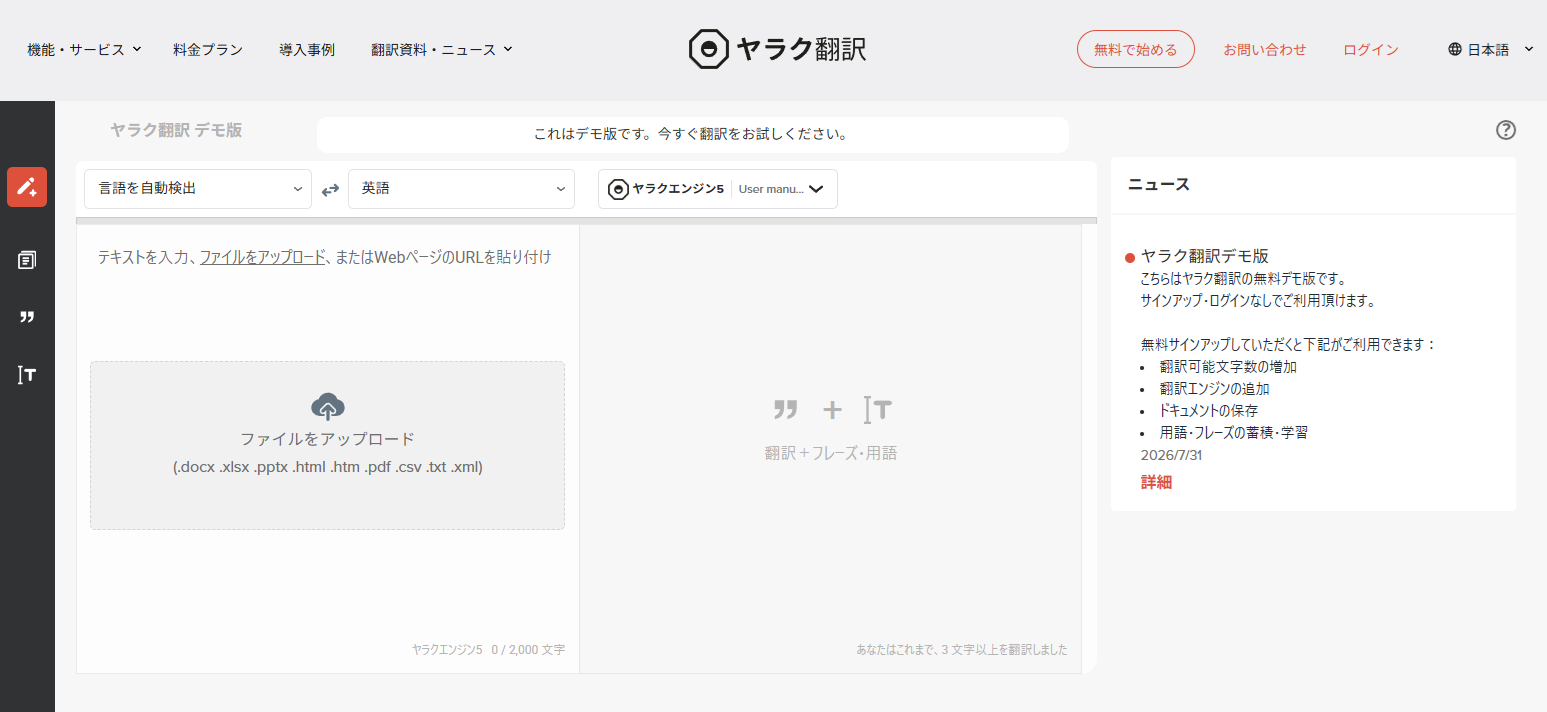
Yaraku Translate
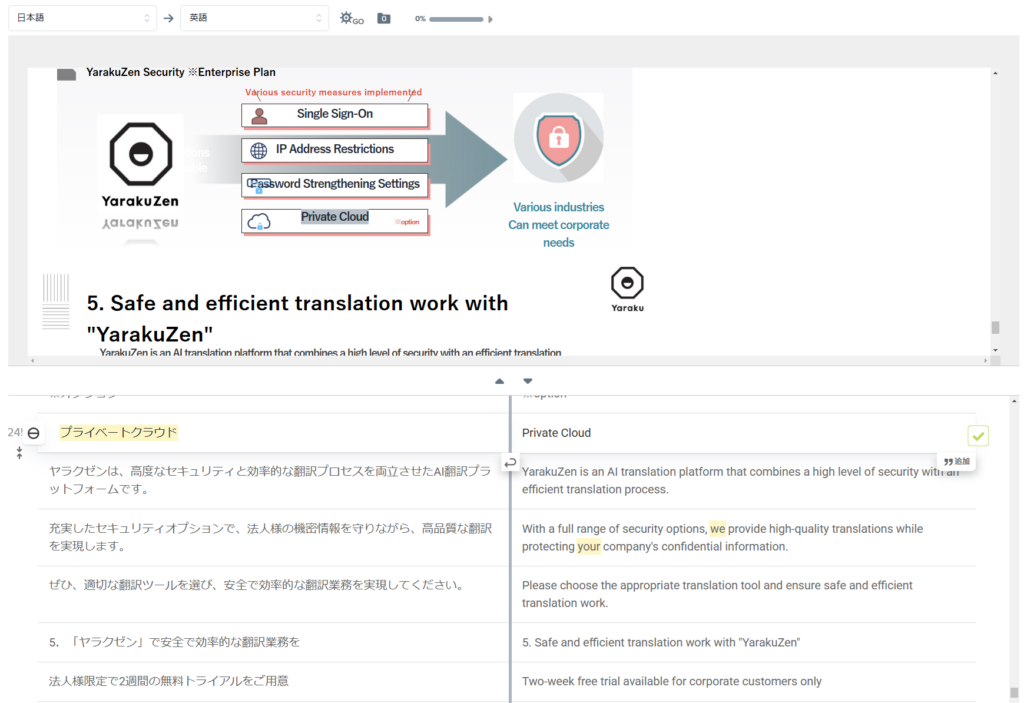
Yaraku Translate is a CAT Tool (Computer Assisted Translation Tool) that can translate an entire PowerPoint file. After machine translation, you can review the preview and edit the translated text in the tool. The steps for translating a PowerPoint file are described below.
- Create an account and log in: Create an account on the official Yaraku Translate website. If you already have an account, log in.
- Select the languages and translation engine: Select the source and target languages and a translation engine. Yaraku Translate supports 36 languages and offers engines including ChatGPT, Claude, Gemini, Google Translate, Microsoft Translator, and the Yaraku engine. Choose an engine based on the document’s content and purpose.
- Upload the file: Drag and drop the PowerPoint file (.pptx) you want to translate, or click “Select file” to upload it.
- Set a Company Category: If needed, select a Company Category to apply registered terms and phrases during machine translation. Choosing a category for a department or use case helps maintain consistent terminology.
- Start translation: After setting the languages, translation engine, and Company Category, click “Start Translation.” Translation begins, and progress appears on screen. Processing time varies with file size and content.
- Review and edit the translation: When translation is complete, the editing screen displays the source and translated text side by side in segments. You can edit the translation as needed. Smart Suggestions lets you view synonyms for a selected word and adjust the wording.
- Download the translated file: After reviewing and editing the translation, click “Download” in the upper-right corner to download the translated PowerPoint file. Yaraku Translate retains as much of the original formatting and layout as possible, reducing post-translation adjustments.
By following the above mentioned steps, Yaraku Translate can serve you for efficient and high quality translations of PowerPoint files. Yaraku Translate , with its intuitive UI and rich functionality, is ideal for multilingual support in business settings.
The Company plan does not use translated documents for secondary purposes, making it an option when handling confidential information.
General considerations for machine translation
Free translation tools that require copy-and-paste also require you to paste the translated text back into PowerPoint. This increases the workload for presentations with a lot of text or many slides.
Supported languages and features vary by tool, so choose one that fits the content and intended use.
Tips for preventing common layout issues after translation
When you translate PowerPoint slides, differences in text length between languages may require adjustments to line breaks, text box widths, and font sizes. Checking the following points in advance can reduce the amount of post-translation rework.
- Use Consistent Fonts
Mixing different fonts across languages can change text positioning and appearance. Use consistent fonts where possible, and choose fonts that support the languages you need to help prevent display issues. - Utilize Slide Masters
Setting font sizes and text box positions in advance with PowerPoint’s slide master makes it easier to adjust the overall layout when text length changes after translation. - Turn Off Auto-fit for Text Boxes
When AutoFit is enabled for a text box, the font size and line breaks may change automatically after translation. Turn it off if needed, then adjust the text manually after translation.
Options for translating large volumes of PowerPoint files
When translating large volumes of PowerPoint files, Yaraku Translate’s Company plan is an option because it has no monthly character limit.
The Company plan has no monthly character limit and supports up to 100,000 characters per translation and files up to 150 MB. It is suitable for ongoing translation of large numbers of files.
Post-editing is essential for improving translation quality
Machine translation output should not be used without review. Post-edit it by checking the following points:
- Whether there are any mistranslations
- Whether proper nouns are translated correctly
- Whether the intended nuances are properly conveyed
This is particularly important for presentation materials, which are often shared inside and outside an organization. Make sure the translation meets the level of quality required for its intended use.
Here are some points to keep in mind to make post-editing easier:
- Break Long Sentences into Shorter Ones
Machine translation may have difficulty capturing the structure and intent of long, complex sentences. Breaking them into shorter sentences beforehand makes the output easier to review. - Register Specialized Terms and Proper Nouns
With Yaraku Translate, you can register proper nouns and technical terms to ensure consistent during the automated translations. The company glossary feature applies to all members of a company account, and helps to prevent inconsistent terminology.
You can also register frequently used phrases and sentences in Phrases. They can be reused in future translations to improve efficiency. - Use Yaraku Translate’s Original Engine
The Yaraku engine can reuse past translations when translating text similar to registered phrases. It is useful for repeatedly translating template-based documents in which only certain details, such as numbers or proper nouns, change.
Combining these methods makes translation results easier to review and revise.
Summary: choose a PowerPoint translation method that fits your needs
When translating PowerPoint files, choose a method based on your purpose and the amount of content, then review both the layout and the translated text.
- Decide which method to use
- To translate selected text easily → Use PowerPoint’s built-in feature
- To translate an entire file efficiently → Use a translation support tool such as Yaraku Translate
- Prepare in advance to avoid layout issues
- Adjust font size and placement using the slide master
- Use consistent fonts
- Review the translated text
- Machine translation may produce unnatural expressions
- Use a translation support tool (CAT Tool) for post-editing
- When translating a large number of slides
- Consider a flat-rate Company plan
- Consider a flat-rate Company plan
Keeping these points in mind will help you choose a PowerPoint translation method that suits your purpose and materials.
References
[1] Bennett, S. (2025, March 24). Translation Management Software Statistics 2025. LLC Buddy. Accessed 2025/11/11. https://llcbuddy.com/data/translation-management-software-statistics/
[2] Arora, A. (2025, March 15). Fascinating PowerPoint Statistics to Amaze You. SketchBubble. Accessed 2025/11/11. https://www.sketchbubble.com/blog/fascinating-powerpoint-statistics-to-amaze-you/“>https://www.sketchbubble.com/blog/fascinating-powerpoint-statistics-to-amaze-you/
[3] Microsoft Corporation. PowerPoint – Microsoft 365 Official Page. Accessed 2025/11/11. https://www.microsoft.com/ja-jp/microsoft-365/powerpoint#Key-features